

User Guides
Online Kids Academy Language Learning Platform
🌟 Super Kids English App
📘 A complete guide for students and parents
✨ Welcome to Online Kids Academy
Online Kids Academy offers a modern, child‑centered language‑learning platform designed to help children explore English with confidence. The Super Kids English App guides learners through every activity with intuitive visual prompts, enabling children to progress independently without written instructions or adult assistance.
Independent Learning, Supported by Smart Guidance
Every activity in the Super Kids English App is built for self‑study. When a child encounters difficulty, the Helping Hand feature provides gentle visual cues that guide them forward without interrupting their learning flow. Through this approach, children complete tasks independently, strengthen their problem‑solving skills, and build genuine self‑confidence.
A Structured System That Supports Every Learner
Each learner is placed in a dedicated Section, led by a Section Head who oversees the learning journey from start to finish. The Section Head monitors progress, manages development, and shares updates with parents. This balanced structure ensures that children receive the guidance they need while maintaining full independence — allowing parents to focus on their own priorities with peace of mind.
About This Guide
This guide is designed to help users access the App smoothly, understand its components, learn how each part works, and navigate the platform with ease.
🟦 3. How to Access the App (Mobile + Desktop)
📱 Mobile Access (Moodle App)
Once your membership has been approved, if you intend to use the Super Kids English application on mobile devices, you must install the Moodle App on your device by clicking the images below to ensure it runs seamlessly:


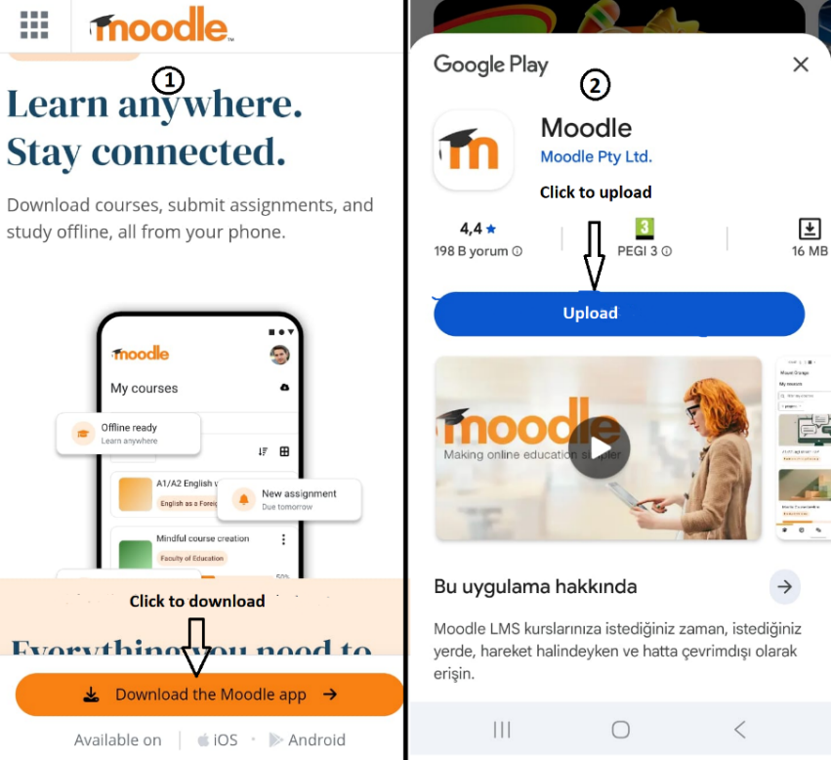
📥 1. ① Download Moodle App
🔧 2. ② Install the App
🌐 1. ① Enter platform address:
To access the Super Kids English application, enter the website address https://platform4.onlinekidsacademy.org/ into the specified field, as shown in the image below.
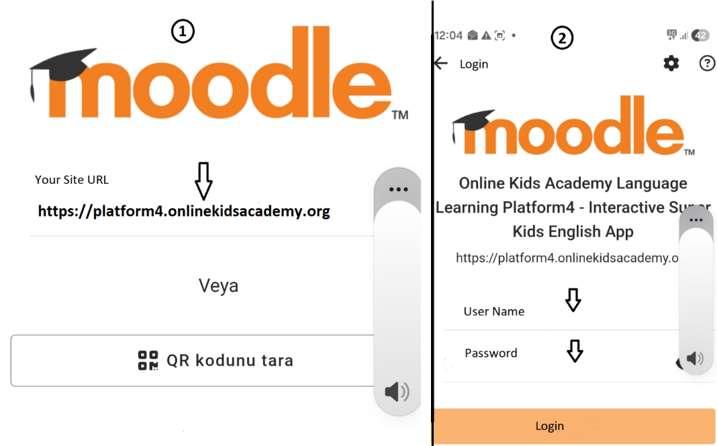
🔑 2. ⓶ Log in with your username and password
Enter your username and password, then log in to the Super Kids English App.
Moodle is the leading learning management system, preferred by educational institutions worldwide for elevating the online learning experience. Users can download each chapter and work offline. Later, they can upload all completed activities back to the platform with a single click.
🧭 Download a Chapter to a mobile device for offline working
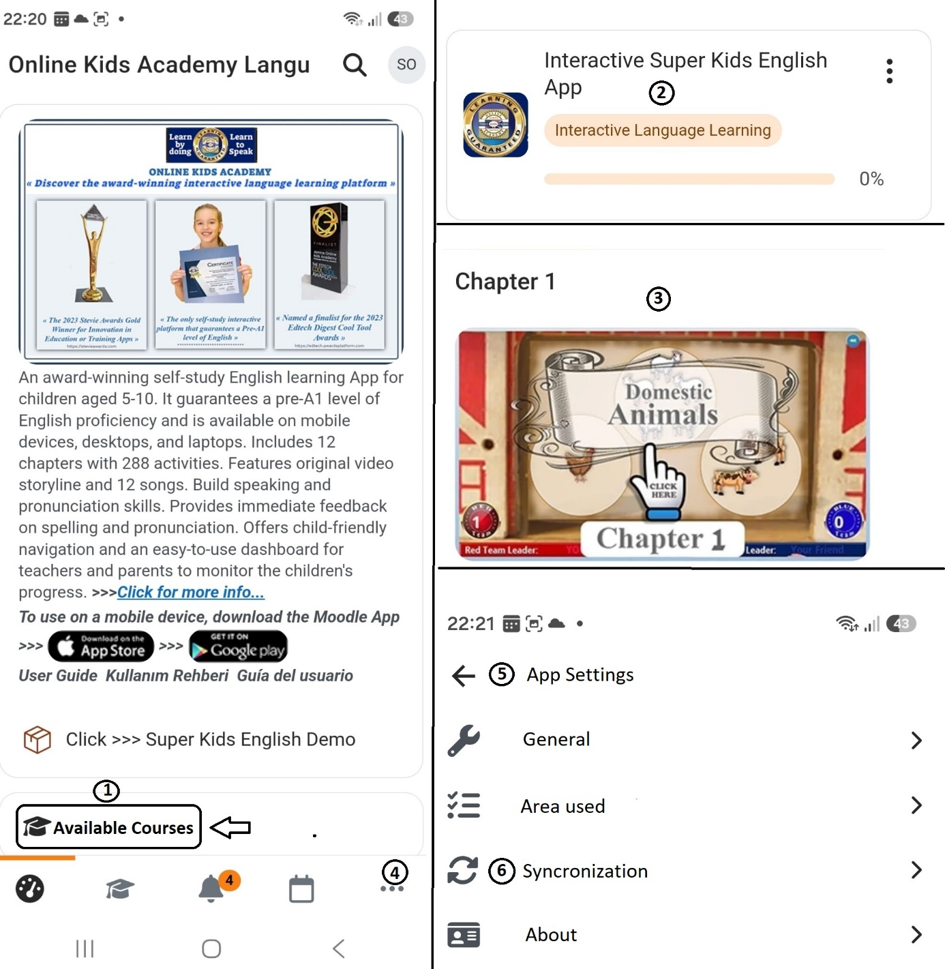
- ① After logging in, click on “Available Courses”—as shown on the left side of the image below.
- ⓶ Click on “Interactive Language Learning” — as shown in the top-right corner of the image below.
- ⓷ To download the relevant Chapter to your device, click the chapter’s image, as shown below. A notification will appear showing the size of the file to be downloaded and the available space on your device.
🧭 Synchronize any work completed offline with the App
4. ⓸ To upload any work you completed offline back to the Online Kids Academy app, click on the three dots—as shown in the image above.
5-6. ⓹⓺ To complete the synchronization, click “App Settings,” then click “Synchronization.” (An internet connection is required for this process. After completing and synchronizing the episode, you can delete the downloaded file to free up space.)
🎤 Important note: The Online Kids Academy English Language Learning Platform features numerous interactive exercises. One of the most important is the “Record your voice and listen to the speech” function. This requires the mobile device’s microphone to be enabled. After installing the Moodle app on your mobile device (smartphone or tablet), you must enable the app’s microphone in the device’s app settings. (Microphone access must also be enabled when accessing the application via the web: Settings > Security and Privacy > Microphone > Turn on microphone access.)
💻 Desktop Access
Please go to https://platform4.onlinekidsacademy.org/.
The following page will open:
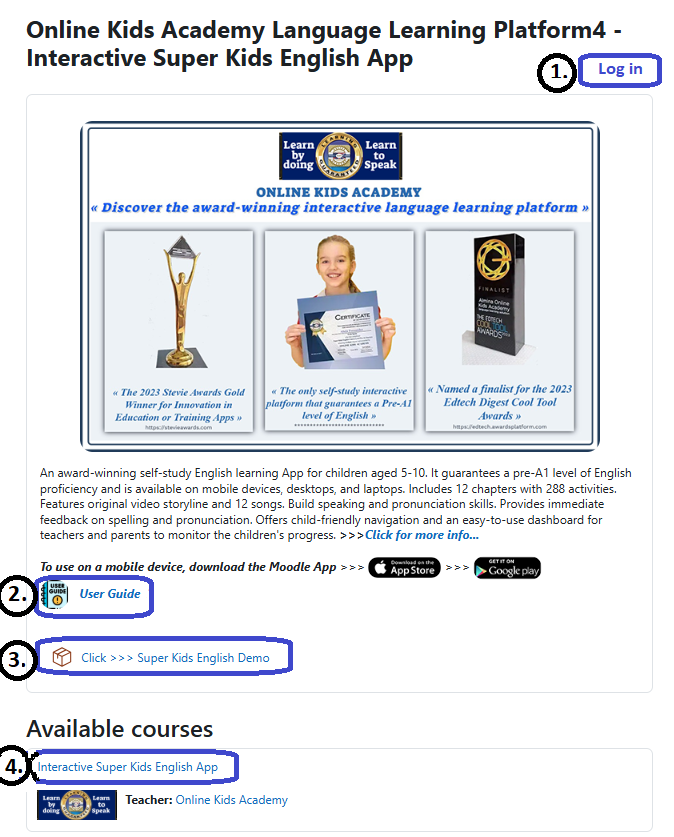
🔐 1. ① Log in to Your Account
Click “Log in” and sign in using the username and password you created during registration. This will take you directly to your personal dashboard.
📘 2. ⓶ Open the Detailed User Guide
Click “User Guide” to access the full guide. This resource clearly explains every feature of the App, helping both children and parents understand the learning environment.
🎬 3. ③ Explore the Super Kids English Demo
To get familiar with the App’s structure and activity flow, you can also open the “Super Kids English Demo”. This demo gives you a quick preview of how children interact with the activities.
📚 4. ⓸ Access the Interactive Super Kids English App
Select “Interactive Super Kids English App” to enter the learning area. Here, you can begin your journey with Chapter 1, where all activities are designed for independent learning.
The following page will open
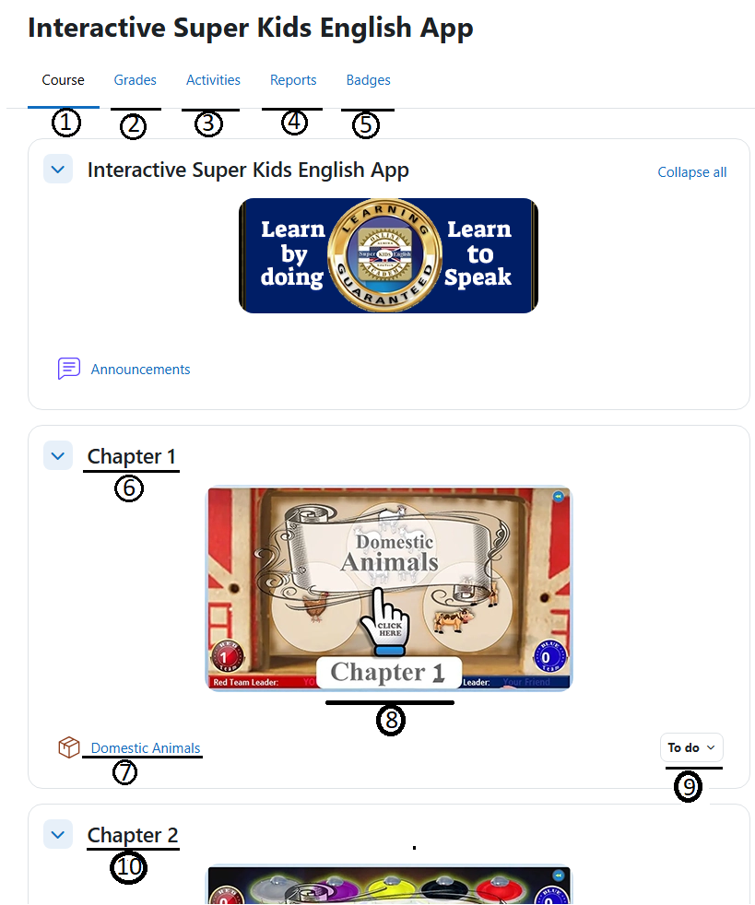
- ① Select the Course Tab to view all chapters in the Super Kids English App.
- ⓶ Click this Tab to check your grade for each chapter.
- ⓷ Access all SCORM Packages and track your chapter completion status.
- ⓸ Review every report type available in the Super Kids English App
- ⓹ Explore all badges and learn how to earn them.
- ⓺ Chapter’s Number.
- ⓻ Click here to enter the corresponding chapter.
- ⓼ Click here to enter the corresponding chapter.
- ⓽ Tasks related to the chapter.
- ⓾ Next chapter.
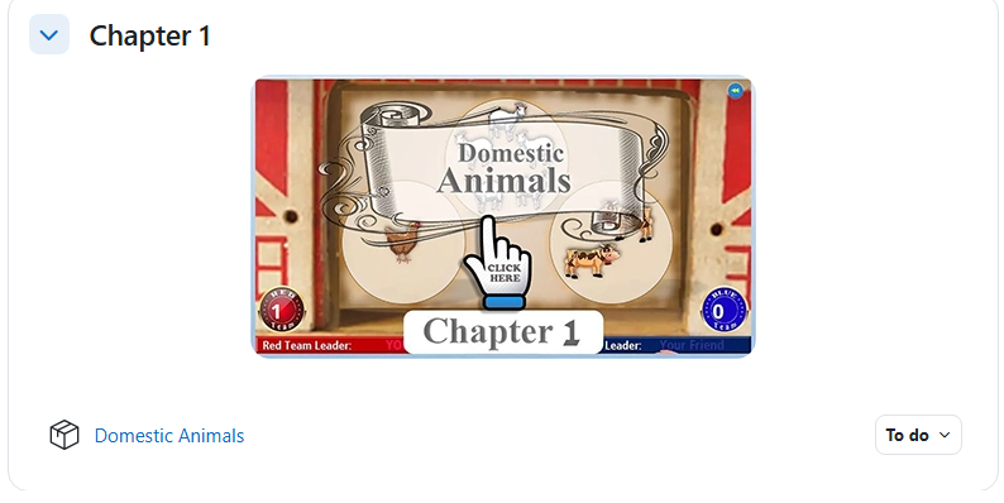
🚀 5. Access Chapter 1 of the Super Kids English App and start learning.
— To access the chapter, click on its image.
🟦 Learner Enrolment Form
Each Chapter begins by displaying the Learner Enrolment Form. It is important to fill out this form correctly from the start. The information provided here will be used in the competition activities and reporting.
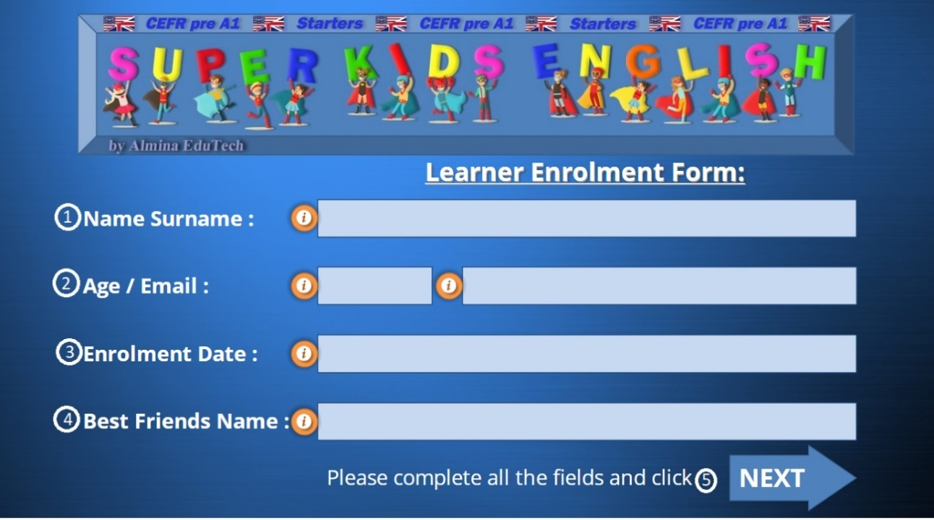
- ① Fill in your first and last name.
- ⓶ Specify the user’s age and enter the email address you used during registration.
- ⓷ Specify the registration date. This date is important for determining the section’s completion time.
- ⓸ Here, enter the name of the person the user wants to compete against in competitive activities: a friend, sibling, parent, etc. When users select the correct option in the activity, they earn points; if they choose incorrectly, their opponent earns the points instead. In the end, the spaceship awards the winner a badge.
- ⓹ Click “Next” to continue to the Control Panel.
🟦 Navigating the App-Explore the Control Panel
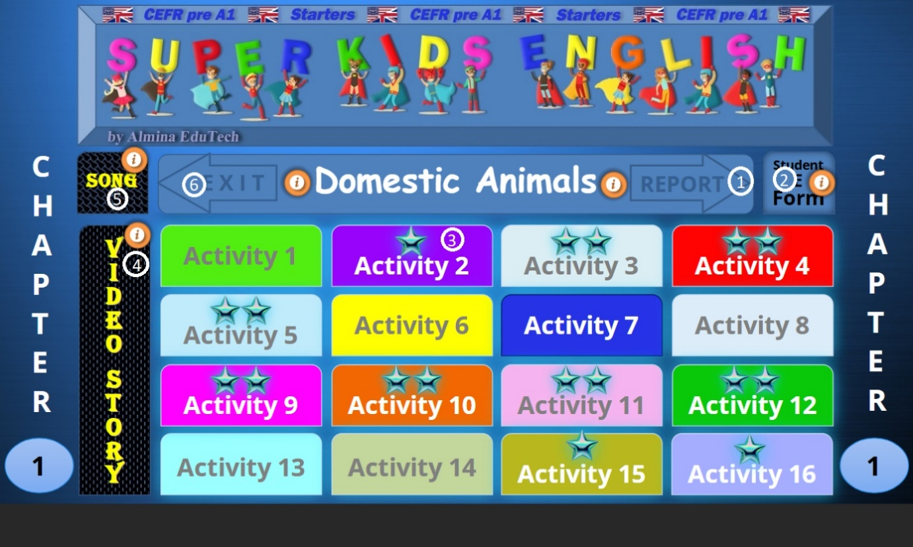
The Control Panel serves as the main hub for managing a Chapter. Users can access every part of the Chapter from this location, including all activities, songs, video stories, the Progress Dashboard, and the Learner Enrolment Form. Once an activity is finished, they can come back to the Control Panel to either continue with another activity or leave the Chapter altogether.
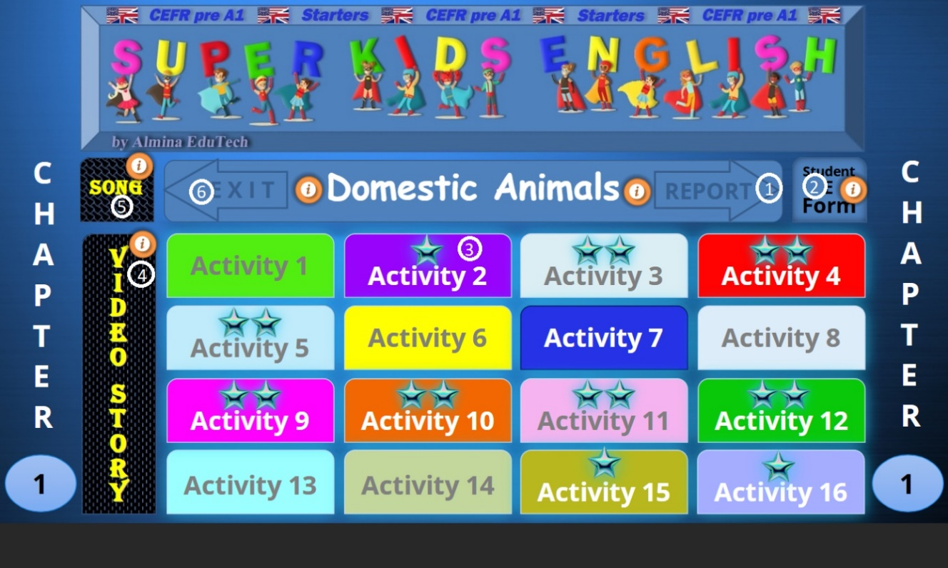
- ① Click to Access the Progress Dashboard.
- ② Select to view the Learner Enrolment Form and check previously entered details.
- ③ Choose one of the 16 activity tabs to access that activity.
- ⓸ Select to open the Video Stories Panel.
- ⓹ Select to open the Songs Panel.
- ⓺ Click to exit the Chapter.
>>>Click to watch the demo video>>>
— Review the Activity Starter Panel
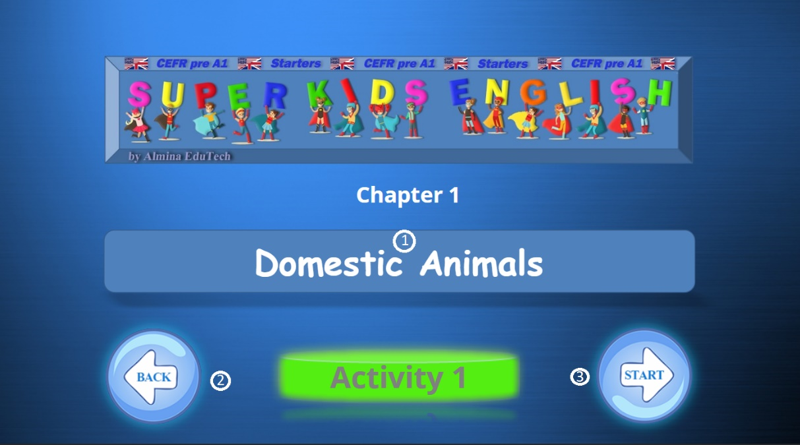
- ① Name of the Activity
- ⓶ Click ”Back” to go to the Control Panel
- ⓷ Click ”Start” to start the Activity
— Review the Activity Completion Panel 1
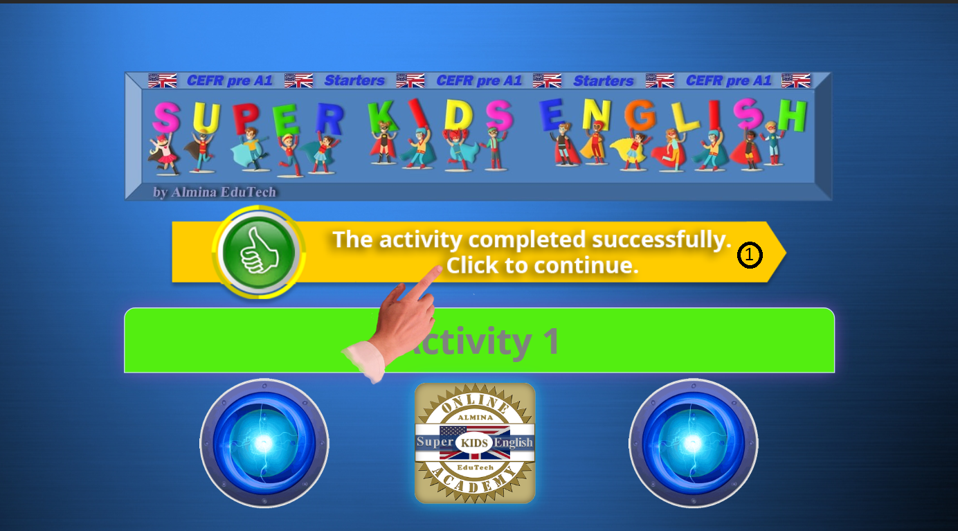
- Click the arrow to complete the Activity and continue to the final panel. The yellow color indicates that the activity was completed successfully. If the arrow is red, the activity is not completed successfully. In that case, redo the activity.
— Review the Activity Completion Panel 2
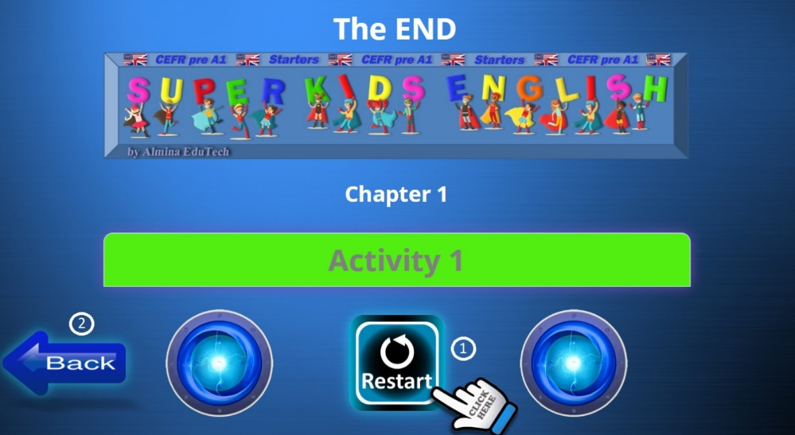
- ① If the arrow in Activity Completion Panel 1 appears red, the activity was not completed successfully. It is highly recommended to repeat the activity in that case. Please click here to restart the activity.
- ⓶ Please click ”Back” to return to the Control Panel.
🟦 Explore the Songs Panel
— Songs aren’t just a fun extra in language learning—they’re one of the most powerful tools for helping children absorb English naturally, joyfully, and effectively. Music activates parts of the brain that traditional instruction simply can’t reach, making learning feel effortless. Music acts like a memory glue.
— To Access the Song Panel, click the “Song” on the Control Panel
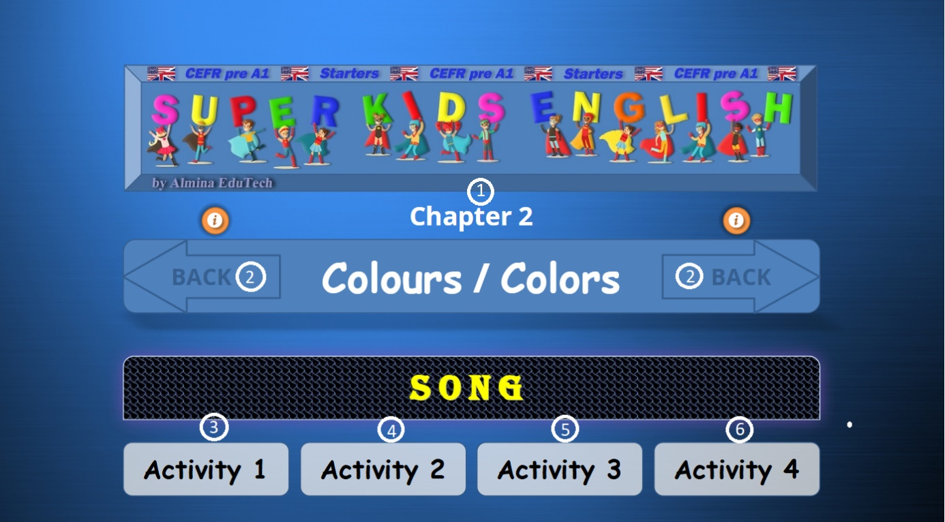
- ⓵ Chapter Number and Name
- ⓶ Click to return to Control Panel
- ⓷ Click the Activity 1 Tab to start the activity. Watch the video and listen to the song without subtitles.
- ④ Click the Activity 2 Tab to start the activity. Watch the video and listen to the song with subtitles.
- ⑤ Click the Activity 3 Tab to start the activity. Sing along after each episode.
- ⑥ Click the Activity 4 Tab to start the activity. Sing along with the music.
🟦 Explore the Video Stories Panel
Video stories are among the most powerful tools for helping children learn English naturally. They combine language, visuals, sound, and emotion in a way that mirrors how children learn their first language — through meaningful, engaging experiences. (To Access the Video Story Panel, click “Video Story” on the Control Panel)
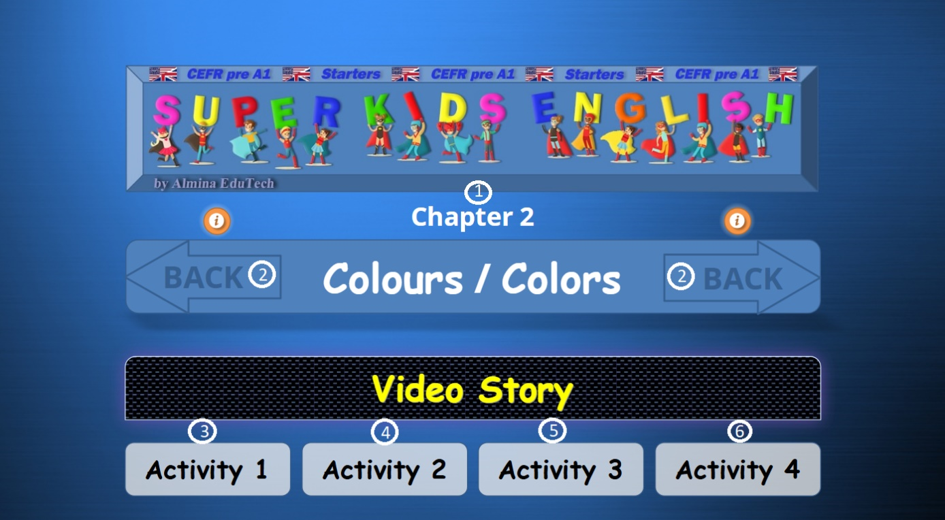
- ① Chapter Number and Name
- ② Click to return to Control Panel
- ③ Click the Activity 1 Tab to start the activity. Watch the video without speech bubbles.
- ④ Click the Activity 2 Tab to start the activity. Watch the video with speech bubbles.
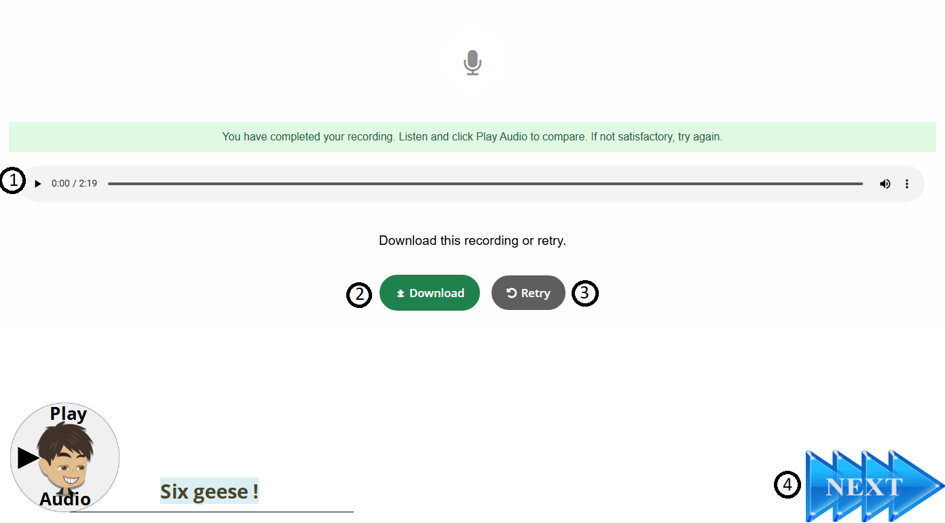
- ⑤ Select the Activity 3 Tab to begin. First, watch the video, then record your voice and listen to your recording. If you’d like, you can download it. You may also try again if you’re not happy with your result.
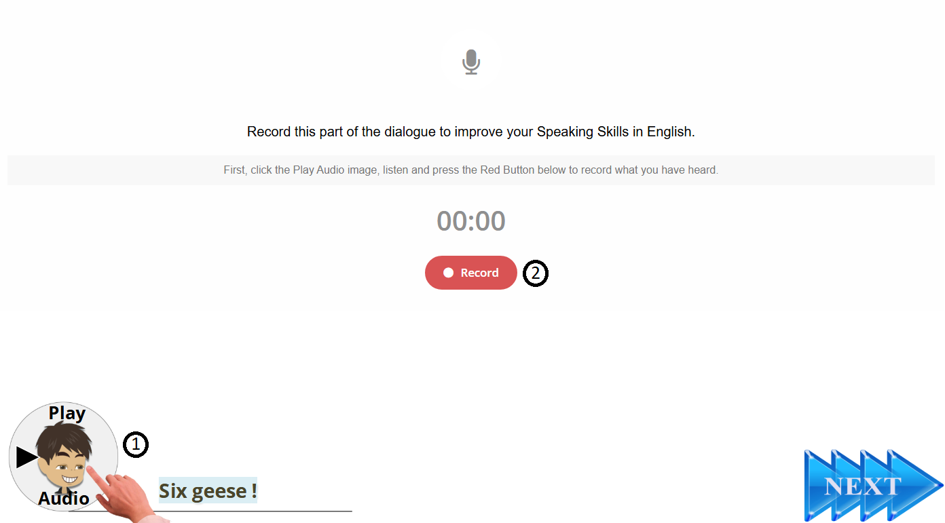
— Video Activity 3: Learn its implementation
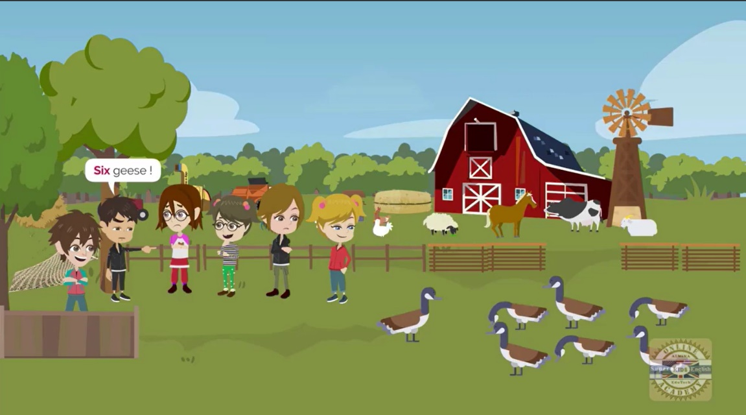
- ⓵ Click the character’s image below and listen to the recording.
- ⓶ Click “Record” and speak to record the word or sentence you hear.
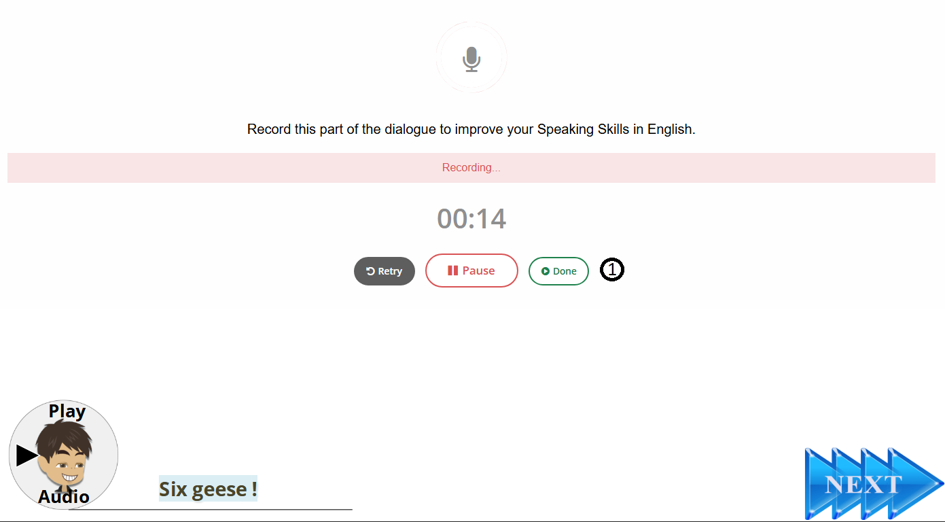
- ⓵ Click “Done” when you have completed the recording.
- ⓵ Click to listen to the recording.
- ⓶ You may download the recording if desired.
- ⓷ Click “Retry” to repeat if you are not satisfied.
- ⓸ Click “Next” to proceed to the following scene.
>>>Click to watch the demo video>>>
— Video Activity 4: Learn its implementation
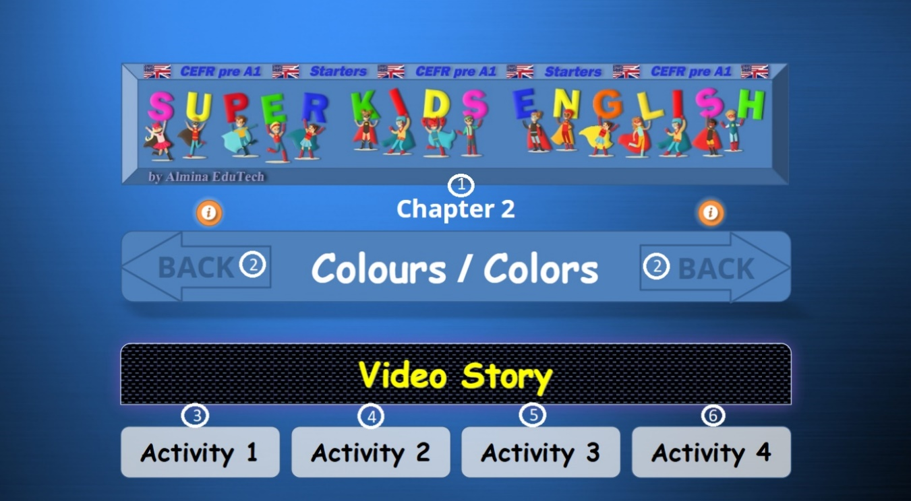
— Click the Activity 4 Tab to start the activity.
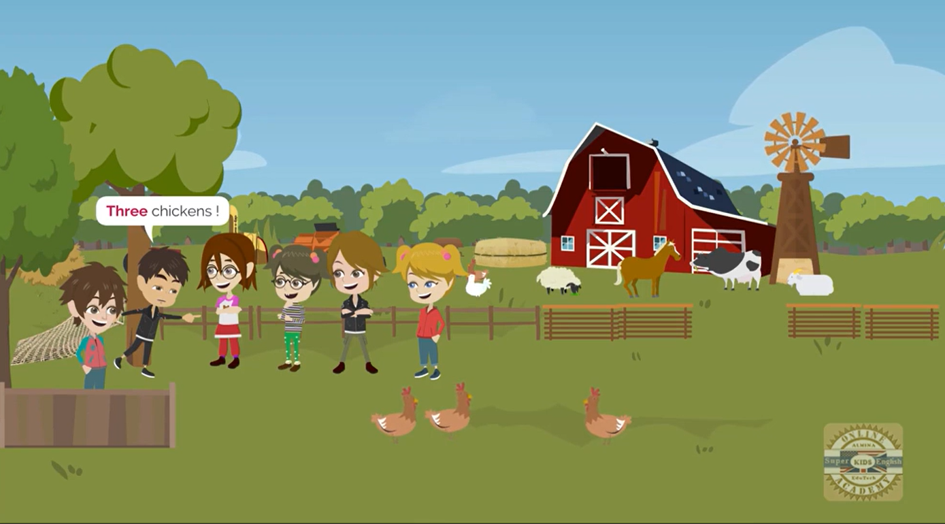
— Please watch the video carefully. Then repeat aloud the word or sentence within the given time.
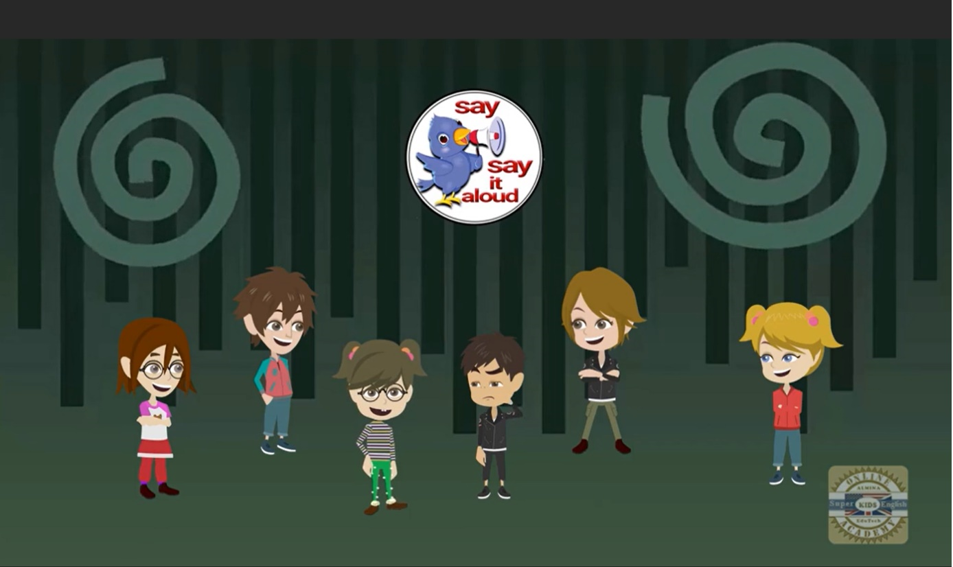
— Please repeat aloud the word or sentence within the given time.
🟦 Progress Dashboard
- ① To access the Progress Dashboard, click “REPORT” in the upper right corner of the Control Panel.
—Explore the Progress Dashboard and its features
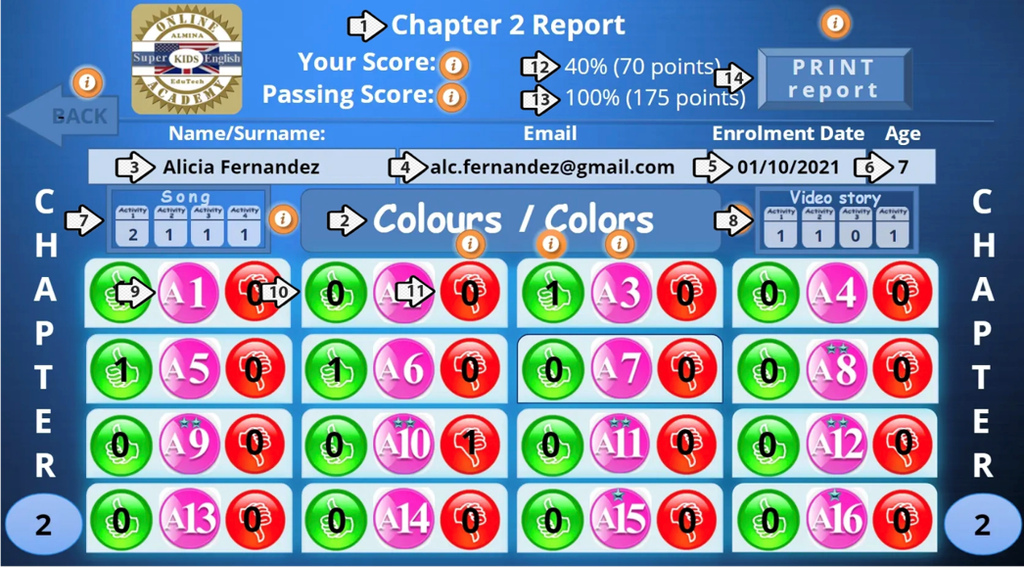
- Report Title
- Chapter Title
- Username and surname
- User’s email address
- Enrolment date
- User’s age
- Song Report: Displays the number of completions for each song exercise.
- Video Report: Displays the number of completions for each video exercise.
- The activity number within a chapter.
- Displays the number of successful completions of an activity.
- Displays the number of unsuccessful completions of an activity.
–Note: To meet the Cambridge pre-A1 requirements, the user must complete each song and video exercise at least once and successfully complete each chapter activity. (Every number inside a green circle must be at least 1.)
🟦 Explore the Badges
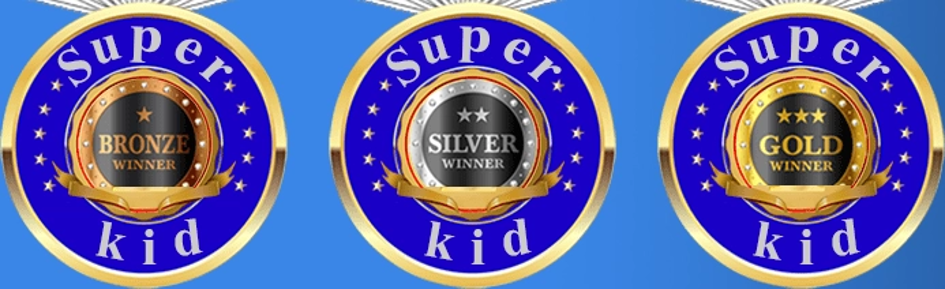
— Badges help kids stay engaged, understand their progress, build confidence, and enjoy learning. They are a motivational engine.
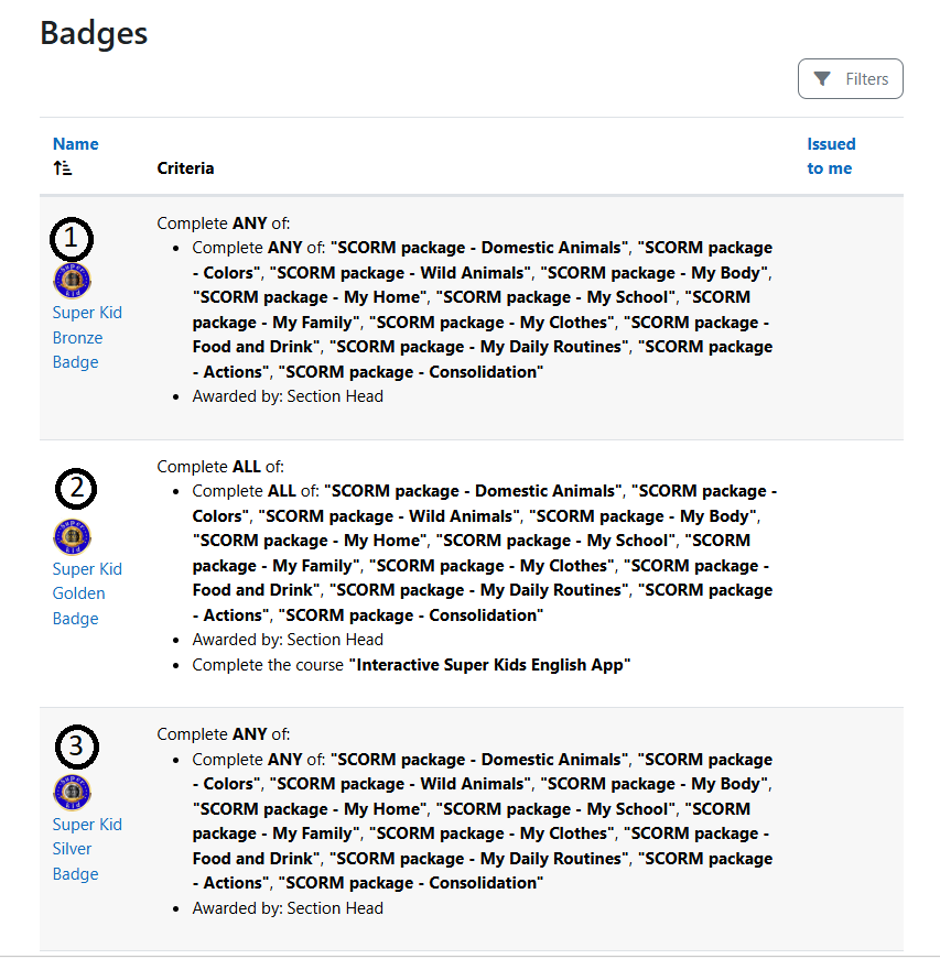
- ① Super Kid Bronze Badge: Upon successfully completing a chapter in the Super Kids English App, children receive a Bronze Badge as recognition. The award is granted following approval from the Section Head.
- ② Super Kid Silver Badge: Upon successfully completing an additional chapter in the Super Kids English App, children receive a Silver Badge as recognition. The award is granted following approval from the Section Head.
- ③ Super Kid Golden Badge: Upon completing all chapters in the Super Kids English App, children receive a Golden Badge in recognition. The award is granted following approval from the Section Head.
🟦 Online Kids Academy Certificate of Achievement
— Children care deeply about this certificate because it is their first International Certificate, and they deserve it. It marks real progress in a child’s learning journey.
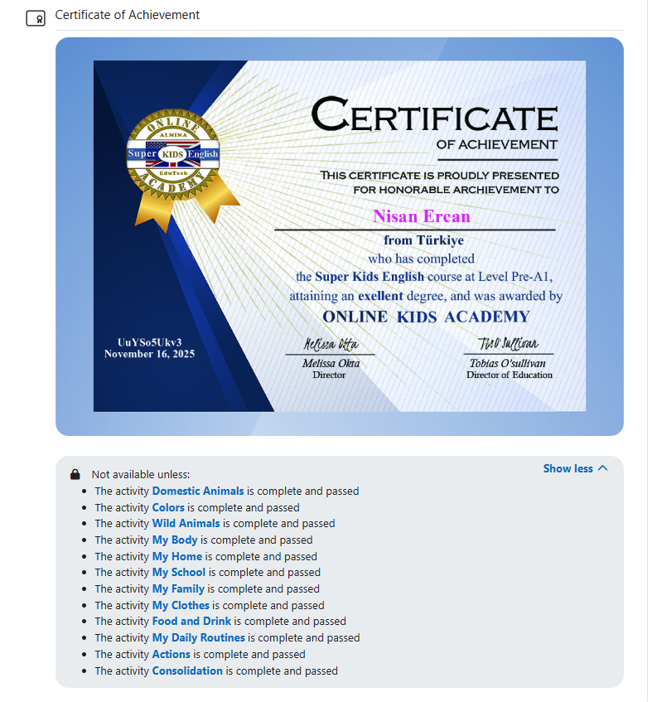
Upon completing all chapters in the Super Kids English App, children receive a Certificate of Achievement from the Online Kids Academy. The Section Head approves the certificate.
🌟 We wish you success in your learning journey!
Thank you for choosing Online Kids Academy.
Our team is always here to support you whenever you need assistance.